
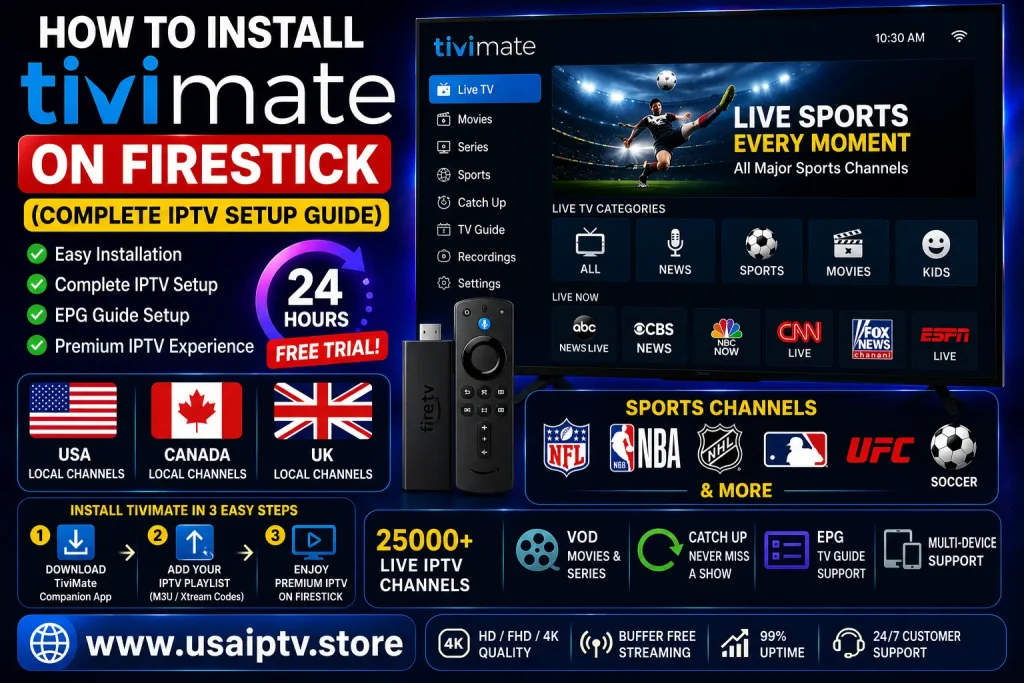
If you’re looking to transform your Amazon Firestick into a powerful streaming powerhouse, installing TiviMate for Firestick is the absolute best way to enjoy live television, movies, and series in 2026. TiviMate has become the gold standard for IPTV users worldwide, offering a sleek, modern interface that rivals expensive cable subscriptions. This comprehensive guide will walk you through every single step required to get TiviMate up and running on your device, while also showing you how to pair it with the best IPTV for TiviMate services available today. By the end of this article, you’ll have a professional-grade entertainment system that delivers thousands of channels right to your living room. Let’s get started with everything you need to know about this incredible application and how to set it up properly. discover the #1 rated IPTV service that works perfectly with TiviMate.
What Is TiviMate and Why Is It the Best IPTV Player?
TiviMate is a feature-rich IPTV player designed specifically for Android-based streaming devices, including Amazon Firestick and Fire TV. Unlike generic media players, TiviMate was built from the ground up with IPTV for TiviMate users in mind — meaning it handles large playlists, EPG (Electronic Program Guide) data, channel grouping, recordings, and catch-up TV with incredible ease.
Here’s why millions of users around the world prefer TiviMate for Firestick:
- Smooth, TV-friendly interface that works perfectly with the Firestick remote
- Support for multiple IPTV playlists so you can manage different providers in one app
- Built-in EPG support with a beautiful program guide layout
- Recording functionality (with Premium) to record your favorite shows
- Catch-up TV support so you never miss a program
- Parental controls and favorites management
- Auto-update playlists to always have the latest channels available
TiviMate is free to download, but the Premium version (very affordable) unlocks the full power of the application. For IPTV for TiviMate users, the Premium upgrade is absolutely worth every penny.
What You Need Before You Start
Before diving into the installation process, make sure you have the following ready:
- Amazon Firestick (any generation, including Fire TV Stick 4K, 4K Max, or Lite)
- Active IPTV subscription with an M3U URL or Xtream Codes login from your IPTV provider
- Stable internet connection (minimum 25 Mbps recommended for HD streaming)
- Amazon account signed into your Firestick
- Downloader app (we’ll use this to sideload TiviMate)
Step 1: Enable Apps from Unknown Sources on Your Firestick
Since TiviMate for Firestick is not available directly on the Amazon App Store, you need to enable sideloading first.
- From your Firestick home screen, go to Settings
- Scroll right and click on My Fire TV (or Device on older models)
- Select Developer Options
- Turn on Install Unknown Apps
- Also enable ADB Debugging if prompted
This setting allows your Firestick to install apps from sources outside the Amazon App Store. Don’t worry — this is completely safe when you’re downloading from trusted sources.
Step 2: Download and Install the Downloader App
The Downloader app is a free tool available in the Amazon App Store that lets you browse to any URL and download APK files directly to your Firestick.
- Press the Home button on your Firestick remote
- Use the search function and type “Downloader”
- Select the Downloader app by AFTVnews from the results
- Click Download and wait for it to install
- Open the Downloader app and allow any permissions it requests
Once the Downloader app is open, you’ll see a simple browser with a URL input field. This is what you’ll use in the next step.
Step 3: Download TiviMate APK Using Downloader
Now it’s time to actually download the TiviMate APK file onto your Firestick.
- Open the Downloader app
- Click on the URL bar at the top
- Type in the official TiviMate download URL or search “TiviMate APK latest version” to find the most current download link for 2026
- Press Go
- The APK file will begin downloading — this usually takes less than a minute depending on your connection speed
- Once downloaded, Downloader will automatically prompt you to install the file
Pro Tip: Always make sure you’re downloading from a reputable source. The official TiviMate Companion website or well-known IPTV community forums are your safest options.
Step 4: Install TiviMate on Your Firestick
After the download is complete:
- A prompt will appear asking “Do you want to install this application?”
- Click Install
- Wait for the installation to complete (usually 10–20 seconds)
- Click Done (NOT Open — we’ll set it up properly first)
- Go back to the Downloader home screen and delete the APK file to free up storage space
You can now find TiviMate in your Apps & Channels section on the Firestick home screen. If you want faster access, highlight the app, press the Menu button (three lines), and select Move to Front.
Step 5: Set Up TiviMate with Your IPTV Subscription
This is where the magic happens. Now that TiviMate for Firestick is installed, it’s time to connect it to your IPTV service.
If your provider gave you an M3U URL:
- Open TiviMate
- Tap Add Playlist
- Select M3U Playlist
- Enter your M3U URL in the field provided
- Give your playlist a name (e.g., your provider’s name)
- Tap Next and let TiviMate load all the channels
If your provider gave you Xtream Codes login:
- Open TiviMate
- Tap Add Playlist
- Select Xtream Codes API
- Enter your Server URL, Username, and Password
- Tap Next to connect and load the channel list
Depending on the size of your IPTV playlist, loading can take anywhere from 30 seconds to a few minutes. Large IPTV for TiviMate playlists with thousands of channels may take longer on the first load.
Step 6: Configure EPG (Electronic Program Guide)
For the best experience, setting up your EPG is essential so you can see what’s on each channel.
- In TiviMate, go to Settings → Playlists
- Select your playlist and tap EPG
- Enter the EPG URL provided by your IPTV service (usually ends in
.xmlor.gz) - Set the EPG update frequency to every 24 hours
- Tap Update EPG Now to load the program guide immediately
Once loaded, you’ll see show times and descriptions appear alongside each channel — making your TiviMate for Firestick experience feel just like a professional cable service.
Step 7: Upgrade to TiviMate Premium (Highly Recommended)
The free version of TiviMate is functional, but the Premium version unlocks everything:
- Multiple playlist support (great if you use more than one IPTV provider)
- Recording capabilities (record live TV directly to a USB drive)
- Catch-up TV access
- Parental controls
- Auto-update for playlists
To upgrade, you’ll need to install the TiviMate Companion app from the Google Play Store on your Android phone or tablet, purchase Premium there, and link it to your TiviMate account. The process is simple and takes less than five minutes.
Troubleshooting Common TiviMate Issues
Channels not loading?
- Check your internet speed
- Verify your M3U URL or Xtream Codes credentials are correct
- Contact your IPTV provider to confirm your subscription is active
Buffering issues?
- Switch from Wi-Fi to a wired Ethernet connection using a Firestick Ethernet adapter
- Lower the stream quality in TiviMate settings
- Try enabling the Hardware Accelerator option in TiviMate’s player settings
EPG not showing?
- Double-check your EPG URL
- Try manually updating by going to Settings → EPG → Update Now
- Make sure your Firestick has enough free storage
Setting up TiviMate for Firestick in 2026 is easier than ever, and the result is an absolutely premium IPTV viewing experience that rivals — and often surpasses — traditional cable television. From its beautiful interface to its rock-solid performance with IPTV for TiviMate playlists, there’s a reason this app has become the go-to choice for IPTV enthusiasts worldwide. Whether you’re managing a single playlist or multiple subscriptions across different providers, TiviMate handles everything with grace and efficiency. Don’t wait another day watching content on a subpar player — install TiviMate on your Firestick today, grab a quality IPTV subscription, and transform your living room into the ultimate entertainment hub. Share this guide with friends and family who are still overpaying for cable, and help them make the switch too!